This guide explains how to integrate the Recurring Billing REST API into your payment
system.
The Recurring Billing service enables you to create and manage payment plans
and subscriptions for recurring payment schedules. It automates the storage and handling of
your customer’s payment information and personal data within secure Visa data centers in
compliance with credentials-on-file (COF) best practices. Storage risks and the PCI DSS scope
are reduced through the use of
Token Management
.
Bank of America
Recurring Billing consists of these three
elements:
Plan:
Stores the billing schedule.
Subscription:
Combines the token and plan and defines the subscription start
date, name, and description.
Token:
Stores customer billing, shipping, and payment details.
IMPORTANT
Do not use this document if you are using the payments API to process
recurring payments. When using payments API for MITs, you must capture and store the
customer's payment credentials manually. Also, you send the payments API MIT requests to
different endpoints than you send the recurring billing requests.
Prerequisites
Your account must be enabled for Recurring Billing and configured for
Token Management
.
The customer token is the only token type that can be used with Recurring Billing.
Account Validation (Pre-Authorization)
When you capture payment card data for future use,
Bank of America
recommends that you ensure that the account number entered is an active,
valid account. You can also use the Address Verification Service (AVS), the
Card Verification Number (CVN), and expiration date validation. To validate
the account, initiate a zero-amount authorization transaction.
If your processor does not support account validation, you can use the minimal
supported amount and do a reversal later. You can also enable the
Data
Enrichment for Card Verification
feature, which automatically
chooses the minimal authorization amount. Contact customer support for more
details.
For more information about how to perform a pre-authorization, see the
A plan defines the payment amount and billing schedule for recurring or subscription
payments.
After you create a plan, you can assign it to multiple subscriptions and manage changes for
multiple subscriptions.
IMPORTANT
Installment-based plans are not available.
Recurring Billing supports two types of plans:
Standard plans
: created and stored within the recurring billing service for
re-use. You can assign these plans to multiple subscriptions.
One-time plans
: created specifically for a single subscription and not stored for
re-use nor assigned to other subscriptions.
Both plan types have two billing cycle options. Choose one of these billing cycles when
defining the number of recurring payments:
Bill indefinitely
Fixed number of payments
Bill Indefinitely
This billing cycle option has a fixed payment amount and a payment schedule with no end date.
This option comprises these elements:
Plan code
Plan name
Plan description (optional)
Billing frequency
Currency
Payment amount
Set-up fee (optional)
IMPORTANT
One-time plans do not include a plan code, plan name, or plan
description.
Fixed Number of Payments
This billing cycle option has a fixed payment amount, a payment schedule, and a fixed
number of payments. This option comprises these elements:
Plan code
Plan name
Plan description (optional)
Billing frequency
Currency
Payment amount
Number of billing cycles
Set-up fee (optional)
IMPORTANT
One-time plans do not include a plan code, plan name, or plan
description.
Plan Statuses
A plan has one of these statuses:
Figure:
Plan Status Flow
Draft
: a draft plan cannot be assigned to new or existing subscriptions.
Draft plans can be changed to active or deleted.
Active
: an active plan can be used when you create a new subscription or
assigned to an existing subscription. Active plans can be changed to inactive or
deleted.
Inactive
: subscriptions that are assigned to an inactive plan are billed
until the subscription is completed or canceled. You cannot use inactive plans to
create new subscriptions, nor switch subscriptions to an inactive plan. Inactive
plans can be changed to active.
Deleted
: a deleted plan is removed from the system.
IMPORTANT
You cannot amend an inactive plan. To make changes, move the plan
to active or draft status.
IMPORTANT
You can delete a standard plan that has a draft status or
has an active or inactive status and has never been assigned to any subscriptions.
Assigning a Plan Code
When you create a standard plan, you can choose to supply a plan code that relates to your business and is used for reference to the plan. This code can be numeric or alphanumeric with dash (-) and dot (.) characters, and up to 10 characters long.
If no plan code is assigned, the system automatically assigns a system-generated value.
Creating a Plan
Create a plan to define the billing schedule, which includes the amount, frequency,
and billing cycles for a subscription. The interval between subscription payments cannot
exceed 12 months.
IMPORTANT
If a subscription is to use a one-time plan
instead of a standard plan, you create the one-time plan when you create the
subscription. The plan details are embedded in the subscription
request.
When you create a plan, the system assigns an ID to the plan. Use
the plan ID to request these actions:
Creating a subscription
Retrieving a plan
Amending a plan
Activating a plan
Deactivating a plan
Deleting a plan
Follow these steps to create a plan:
Send the request to the recurring billing endpoint:
Test:
POST
https://apitest.merchant-services.bankofamerica.com/rbs/v1/plans
Production:
POST
https://api.merchant-services.bankofamerica.com/rbs/v1/plans
AFTER COMPLETING THE TASK
For more details, see the Create a Plan section of the interactive API Reference.
Required Fields for Creating a Plan
Include these fields in your request to create a plan:
When you specify your own plan codes, you can request the next consecutive alphabetical or numeric plan code based on the last plan code that you specified. For example, if the last plan code that you specified was
Plan104
, the system returns the code
Plan105
.
Follow these steps to retrieve a plan code:
Send the request to the Recurring Billing endpoint:
Test:
GET
https://apitest.merchant-services.bankofamerica.com/rbs/v1/plans/code
Production:
GET
https://api.merchant-services.bankofamerica.com/rbs/v1/plans/code
AFTER COMPLETING THE TASK
For more details, see the Get a Plan Code section of the interactive API
Reference.
{
    "status": "INVALID_REQUEST",
    "reason": "INVALID_DATA",
    "message": "One or more fields in the request contains invalid data.",
    "details": [
        {
            "field": "planInformation.status",
            "reason": "INVALID_DATA"
        }
    ]
}
Deleting a Plan
You can delete a standard plan that has a draft status. You can also delete a plan
that has an active or inactive status and has never been assigned to any subscriptions.
Follow these steps to delete a plan:
In the endpoint path, include the plan ID that you received when you retrieved a
list of plans.
Send the request to the Recurring Billing endpoint:
For more details, see the Delete a Plan section of the interactive API Reference.
REST Example: Deleting a Plan
Response to a Successful Request
{
  "status": "COMPLETED"
}
Error Response
{
    "status": "NOT_FOUND",
    "reason": "NOT_FOUND",
    "message": "One or more fields in the request contains invalid data.",
    "details": [
        {
            "field": "subscriptionInformation.planId",
            "reason": "INVALID_DATA"
        }
    ]
}
Subscriptions
Subscriptions store customer details by using a Token Management Service (TMS) token. You
must have an assigned payment plan. Subscriptions consist of this information:
Subscription code
Subscription name
Start date
TMS token
Plan: standard or one-time
(Optional) Merchant Reference Number: the specified value will be used as the merchant
reference number for all subscription payments. If no value is provided, the system will
automatically generate a random number for each subsequent payment.
Subscriptions can be updated, activated, suspended, or canceled.
Subscription Prerequisites
Before creating a subscription, you must create a customer token.
For more information about creating a customer token, see the see the
Authorized amount for the transaction initializing the subscription. Required only for Diners or Discover cards.
Subscription Statuses
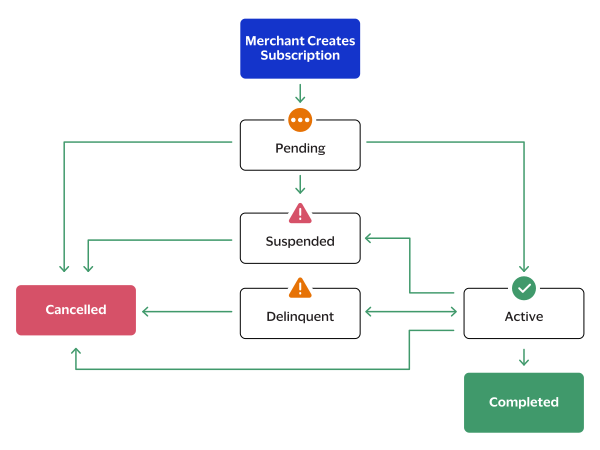
This diagram illustrates the statuses of a subscription from creation to completion.
Figure:
Subscription Flow
A subscription has one of these statuses:
Pending
The first payment is scheduled, or the subscription is in transition to another
state.
Active
The subscription is currently in use. It is set with a payment instrument, and a
payment is scheduled at a pre-determined frequency that you agreed upon with
your customer.
Delinquent
When a scheduled recurring payment fails, the account is placed in a Delinquent
status while the system retries the payment a number of times. If the retries all fail,
the account is placed into a Suspended status.
Suspended
The automated retry logic failed to obtain successful payment,
or you have explicitly suspended the subscription.
In order to resume a suspended subscription for the next billing cycle, choose one of these options:
Collect a different payment method from your customer and then
reactivate the subscription.
Cancel the subscription and create a new subscription for your customer.
Cancelled
You have explicitly cancelled the subscription, and it cannot be reactivated.
You might cancel an active or pending subscription when you and the customer agree to end
the subscription. You might choose to cancel a delinquent subscription rather than wait
for the automatic retry logic to proceed. You might cancel a suspended subscription if the
customer does not have an acceptable alternate payment method.
IMPORTANT
You
cannot cancel a subscription within 10 minutes before or after a payment begins
processing.
Completed
All scheduled payments were made.
This is the state of a subscription that ends with all scheduled payments successfully completed.
This state applies to subscriptions set up with a scheduled end date.
IMPORTANT
You cannot reactivate a completed subscription.
Zero-Amount Authorizations
When you create a subscription before the subscription start date,
Bank of America
verifies the account with a zero-amount authorization to ensure
that the stored card details are valid.
When you create a subscription on the subscription start date,
Bank of America
does not perform a zero-amount authorization because the first recurring payment is
processed immediately.
IMPORTANT
Deprecated flow:
This behavior occurs only when you do not provide the value for
subscriptionInformation.originalTransactionId
and application performs the initial
authorization. This flow does not ensure Strong Customer Authentication (SCA)
compliance.
Assigning a Subscription Code
When you create a subscription, you can supply a subscription code that relates to your business and that is used for reference to the subscription. This code can be numeric or alphanumeric with dash (-) and dot (.) characters and can be up to 10 characters long.
If you do not supply a subscription code, the recurring billing system automatically
assigns a code.
Subscription ID
When you create a subscription, the system assigns an ID to the subscription that you can
use for these actions:
Retrieving a subscription
Amending a subscription
Canceling a subscription
Re-activating a subscription
Suspending a subscription
IMPORTANT
The interval between subscription payments cannot exceed 12
months.
Overriding a Plan
When assigning a plan to a subscription or amending a subscription, you can amend
standard plan details for individual subscriptions. For example, such changes might
include an amendment to the billing amount, plan duration (billing cycles)
amendment.
IMPORTANT
Plan overrides apply only to the individual
subscription and do not amend the standard plan details used for other subscriptions.
Creating a Subscription with an Existing Plan
Basic Steps
Follow these steps to create a subscription:
Create the request with the required API fields.
Send the request to one of these endpoints:
Production:
POST
https://api.merchant-services.bankofamerica.com.rbs/v1/subscriptions
Test:
POST
https://apitest.merchant-services.bankofamerica.com/rbs/v1/subscriptions
Verify the response messages to make sure that the request was successful. A
200-level HTTP response code indicates success.
These fields are required for creating a subscription with an existing plan:
paymentInformation.customer.id
subscriptionInformation.name
subscriptionInformation.planId
Required when you are using a standard plan.
subscriptionInformation.startDate
Optional Field
These fields are optional:
subscriptionInformation.originalTransactionId
Network token identifying the transaction that initialized the subscription. Including
this field ensures better authorization rates and Strong Customer Authentication (SCA)
compliance where necessary.
This value is returned in the Payments response as
processorInformation.networkTransactionId
.
For EFTPOS cards, a network token is not generated. In this case, provide the
transaction request ID or use 0.
subscriptionInformation.code
clientReferenceInformation.code
Merchant reference number.
REST Example: Creating a Subscription with an Existing Plan
This example shows how to create a subscription with an existing plan.
These fields are required for creating a subscription with plan overrides:
paymentInformation.customer.id
subscriptionInformation.name
subscriptionInformation.planId
subscriptionInformation.startDate
Optional Field
subscriptionInformation.originalTransactionId
Network token identifying the transaction that initialized the subscription. Including
this field ensures better authorization rates and Strong Customer Authentication (SCA)
compliance where necessary.
This value is returned in the Payments response as
processorInformation.networkTransactionId
.
For EFTPOS cards, a network token is not generated. In this case, provide the
transaction request ID or use 0.
subscriptionInformation.code
clientReferenceInformation.code
Merchant reference number.
REST Example: Creating a Subscription with Plan
Overrides
{
    "status": "INVALID_REQUEST",
    "reason": "DUPLICATE_REQUEST",
    "message": "Duplicate requests are not supported within 15 minutes.",
    "details": [
        {
            "field": "subscriptionInformation.planId or paymentInformation.customer.id or subscriptionInformation.startDate or subscriptionInformation.name",
            "subscriptionId": "1619214795",
            "reason": "INVALID_DATA"
        }
    ]
}
Creating a Fully Customized Subscription with a One-Time Plan
You can create a subscription with a one-time plan.
The start date must be in coordinated universal time (UTC) in
this format:
YYYY-MM-DDThh:mm:ssZ
. The T separates the date and the
time. The
Z
indicates UTC. For example,
2023-08-11T22:47:57Z
indicates August 11, 2023, at 22:47:57
(10:47:57PM).
For subscriptions created on the start date, set the time to
the current time and day in your time zone.
Fields Specific to This Use Case
These REST API request fields and values are specific to this use case:
orderInformation.amountDetails.billingAmount
orderInformation.amountDetails.currency
orderInformation.amountDetails.setupFee
planInformation.billingCycles.total
planInformation.billingPeriod.length
planInformation.billingPeriod.unit
subscriptionInformation.startDate
Basic Steps
Follow these steps to create a subscription:
Create the request with the required API fields.
Send the request to one of these endpoints:
Production:
POST
https://api.merchant-services.bankofamerica.com.rbs/v1/subscriptions
Test:
POST
https://apitest.merchant-services.bankofamerica.com/rbs/v1/subscriptions
Verify the response messages to make sure that the request was successful. A
200-level HTTP response code indicates success.
These fields are required for creating a subscription with subscription one-time
plan:
orderInformation.amountDetails.billingAmount
orderInformation.amountDetails.currency
orderInformation.amountDetails.setupFee
paymentInformation.customer.id
planInformation.billingPeriod.length
planInformation.billingPeriod.unit
subscriptionInformation.name
subscriptionInformation.startDate
Optional Field
subscriptionInformation.originalTransactionId
Network token identifying the transaction that initialized the subscription. Including
this field ensures better authorization rates and Strong Customer Authentication (SCA)
compliance where necessary.
This value is returned in the Payments response as
processorInformation.networkTransactionId
.
For EFTPOS cards, a network token is not generated. In this case, provide the
transaction request ID or use 0.
subscriptionInformation.code
clientReferenceInformation.code
Merchant reference number.
REST Example: Creating a Fully Customized Subscription with
a One-Time Plan
{
    "status": "INVALID_REQUEST",
    "reason": "INVALID_DATA",
    "message": "One or more fields in the request contains invalid data.",
    "details": [
        {
            "field": "planInformation.billingPeriod.length",
            "reason": "MAX_LENGTH"
        }
    ]
}
Creating a Follow-on Subscription from an Existing Transaction
You can create a subscription using an existing successful transaction by specifying its
request ID in the path. This method eliminates the need to provide a customer
token.
You can use an existing or one-time plan.
Follow these steps to create a subscription from an existing transaction:
Create the request with the required API fields.
Send the request to one of these endpoints:
Verify the responses to make sure that the request was successful. A 200-level
HTTP response code indicates success.
The start date must be in coordinated universal time (UTC) in this format:
YYYY-MM-DDThh:mm:ssZ. The T separates the date and the time. The Z indicates UTC. For
example,
2023-08-11T22:47:57Z
indicates August 11, 2023, at 22:47:57
(10:47:57 p.m.).
For
subscriptions created on the start date, set the time to the current time and day in
your time zone.
Required Fields
These fields are required for creating a subscription from an existing
transaction:
subscriptionInformation.name
subscriptionInformation.startDate
Optional Fields
subscriptionInformation.code
clientReferenceInformation.code
Merchant reference number.
REST Example: Creating a Follow-on Subscription from an Existing Transaction
Retrieving the Details of a Follow-on Subscription Based on an Existing
Transaction
This operation enables you to verify the payment instrument, billing, and shipping
address information from an existing transaction before creating a new subscription.
Follow these steps to retrievethe details of a follow-on subscription based on an
existing transaction:
In the endpoint path, include the request ID of an existing transaction.
Send the request to one of these endpoints:
Verify the response messages to make sure that the request was successful. A
200-level HTTP response code indicates success.
When you specify your subscription code, you can request the next consecutive
alphabetical or numeric subscription code based on the last subscription code you
specified. For example, if the last subscription code that you specified was
24B
, the system returns the code
24C
.
Follow
these steps to retrieve the next subscription code:
Send the request to the recurring billing endpoint:
Test:
GET
https://apitest.merchant-services.bankofamerica.com/rbs/v1/subscriptions/code
Production:
GET
https://api.merchant-services.bankofamerica.com/rbs/v1/subscriptions/code
AFTER COMPLETING THE TASK
For more details, see the Get a Subscription Code section of the interactive API
Reference.
REST Examples: Retrieving the Next Subscription Code
Subscriptions store customer details using a Token Management Service (TMS) token and
have an assigned payment plan. Subscriptions consist of this information:
Subscription code
Use the
subscriptionInformation.code
REST API field
to specify an amended value.
Subscription name
Use the
subscriptionInformation.name
REST API field
to specify an amended value.
Start date
Use the
subscriptionInformation.startDate
REST API field
to specify an amended value.
Token Management Service (TMS) token
You cannot change this information.
Plan: standard or one-time
A
standard plan
is created and stored within the recurring billing service for re-use.
You can assign these plans to multiple subscriptions.
A
one-time plan
is created specifically for a single subscription,
and you create the plan when you create the subscription.
A one-time plan does not include a plan code, plan name, or plan description.
IMPORTANT
The subscription information that you can amend
depends on the status of the subscription. Note the limitations described in in the paragraphs that follow.
IMPORTANT
When you change the plan ID (
subscriptionInformation.planId
field) assigned to a subscription,
the first payment is processed immediately.
If proration is required after the change, it must be managed
outside of the recurring billing service.
Basic Steps
Follow these steps to amend a subscription.
Create the request with the API fields that contain new values.
Send the request to one of these endpoints. In the endpoint path, replace the
{id}
portion of the URL with the subscription ID that you received
when you retrieved a list of subscriptions:
Production:
POST
https://api.merchant-services.bankofamerica.com.rbs/v1/subscriptions/{id}
{
    "status": "INVALID_REQUEST",
    "reason": "INVALID_DATA",
    "message": "The subscription cannot be reactivated at this time.",
    "details": [
        {
            "field": "subscriptionInformation.status",
            "reason": "INVALID_FOR_ACTIVATION"
        }
    ]
}
Suspending a Subscription
You can suspend a pending, active, or delinquent subscription. Subscriptions cannot
be suspended 10 minutes before or after a payment begins processing.
Follow these
steps to suspend a subscription:
In the endpoint path, include the subscription ID that you received when you retrieved a list of subscriptions.
Send the request to the recurring billing endpoint:
Test:
POST
https://apitest.merchant-services.bankofamerica.com/rbs/v1/subscriptions/{id}/suspend
Production:
POST
https://api.merchant-services.bankofamerica.com/rbs/v1/subscriptions/{id}/suspend
AFTER COMPLETING THE TASK
For more details, see the Suspend a Subscription section of the interactive API
Reference.
You can cancel a pending, active, suspended, or delinquent subscription. Subscriptions cannot be canceled within 10 minutes before or after a payment begins processing.
Follow these steps to cancel a subscription:
In the endpoint path, include the subscription ID that you received when you retrieved a list of subscriptions.
Send the request to the recurring billing endpoint:
Test:
POST
https://apitest.merchant-services.bankofamerica.com/rbs/v1/subscriptions/{id}/cancel
Production:
POST
https://api.merchant-services.bankofamerica.com/rbs/v1/subscriptions/{id}/cancel
AFTER COMPLETING THE TASK
For more details, see the Cancel a Subscription section of the interactive API
Reference.
{
    "submitTimeUtc": "2026-02-25T14:29:19.160Z",
    "status": "NOT_FOUND",
    "reason": "INVALID_DATA",
    "message": "Subscription with given ID not found."
}
Skipping or Restoring Payments Within a Subscription
You can skip or restore a previously skipped payment for a specific billing cycle.
IMPORTANT
Payment modification is only possible if the payment processing date has not yet been reached. Typically, this means up to 2 hours before the scheduled processing time.
Follow these steps to skip or restore a payment for a specific billing cycle:
In the endpoint path, include the subscription ID.
In the request body, specify the
billingCyclesToSkip
array. This array is a list of future
billing cycles that should be marked as skipped. These restrictions apply:
A
retry
payment cannot be added to the list.
A payment cannot be added (skipped) or removed (restored) if it is within two hours of
its scheduled processing time.
Send the request to the Recurring Billing endpoint:
Production:
POST
https://
api.merchant-services.bankofamerica.com
/rbs/v1/subscriptions/{id}/payments
Test:
POST
https://
apitest.merchant-services.bankofamerica.com
/rbs/v1/subscriptions/{id}/payments
4. Verify that the request was successful. A 200-level HTTP response code indicates success.
For more information, see
{
  "submitTimeUtc": "2026-02-25T14:27:42.216Z",
  "status": "INVALID_REQUEST",
  "reason": "INVALID_DATA",
  "message": "One or more fields in the request contains invalid data.",
  "details": [
    {
      "field": "billingCyclesToSkip",
      "reason": "UNMODIFIABLE_PAYMENT_SKIP_ATTEMPT_CYCLE: 1"
    }
  ]
}
Error Response
{
  "submitTimeUtc": "2026-02-25T14:29:19.160Z",
  "status": "NOT_FOUND",
  "reason": "INVALID_DATA",
  "message": "Subscription with given ID not found."
}
Additional Features
Recurring Billing includes these additional features.
System Retry Logic
Bank of America
automatically retries failed recurring payments based on the
type of decline received from the service. The service retries the internal and external
payment declines.
If the Recurring Billing service encounters an internal processing error without sending
the request out to the banking network, the service retries the payment until the error
is resolved.
If the recurring billing service encounters an external processing error when the request
is sent out to the banking network,
Bank of America
retries the payment
before changing the subscription status to suspended.
If the issuer provides a reason code like Do Not Retry,
Bank of America
stops
all retry attempts.
Bank of America
immediately updates the subscription status to
suspended.
The maximum number of retries is five times and is based on the billing frequency. During
the retry period,
Bank of America
changes the subscription status to
delinquent.
This example shows the system retry logic based on the billing frequency:
Daily
: retry 1 hour later, 1 time
Monthly
: retry every 2 days, 5 times
Weekly
: retry every 1 day, 3 times
Yearly
: retry every 15 days, 3 times
For a recurring payment that has a custom billing frequency, the Recurring Billing
service retries a failed payment based on the billing frequency. As an example, suppose a
payment fails for a recurring billing on a 14-day cycle. The Recurring Billing Service uses
the Daily retry logic and every 2 weeks uses the Weekly retry logic, even if the duration is
the same.
Customer Notifications
The Recurring Billing service sends email notifications to customers using the email
address stored on the customer token. The system sends notifications for three defined
payment events:
Prepayment notification: notification of an upcoming recurring payment.
Successful payment notification: notification of a successful recurring
payment.
Failed payment notification: notification of recurring payment failure.
Bank of America
sends email notifications from a
Bank of America
email address.
IMPORTANT
Some mandates require that customers are notified. If notifications are
disabled, the merchant is responsible for sending notifications to satisfy any mandates
requirements.
You can disable notifications in the Recurring Billing settings in the